Your Guide to Finding the Right IMAP Port Number for Secure Email
When it comes to your email security, the single most important IMAP port number to remember is 933. Think of email ports like different doors into a secure building; picking the right one is absolutely critical for your privacy. If you use the wrong one, you leave your communications exposed. The correct one, however, wraps every message in a layer of strong encryption, protecting it from prying eyes on any network.
Why Your IMAP Port Number Matters for Email Security
Setting up an email client is simply telling it how to connect to your email server to access your messages. The IMAP port number is the specific digital doorway it uses for that conversation. For a hosted email platform, this is a foundational security setting. It's like a bank, which has a public entrance but also a separate, high-security vault door. Email servers work the same way, offering different ports for different levels of security and privacy.
Making the right choice here is a foundational step in protecting your email privacy. An unencrypted connection is like sending a postcard—anyone who intercepts it can read it. This is a huge privacy risk, especially on public Wi-Fi at a coffee shop or airport, where attackers can easily spy on unsecured traffic. A secure, encrypted connection, in contrast, is like sending a sealed, tamper-proof letter, ensuring your private communications stay private.
The Role of Encryption in Email Privacy
The main difference between IMAP ports boils down to one simple thing: encryption. To keep your digital conversations confidential, you must use a port that supports SSL/TLS (Secure Sockets Layer/Transport Layer Security). This technology creates a secure, private tunnel between your email app and your provider's server.
This encrypted tunnel is vital for protecting your sensitive data:
- Login Credentials: It shields your username and password from being stolen during login.
- Email Content: The body of your messages and all attachments are scrambled, making them unreadable to anyone trying to eavesdrop.
- Personal Data: Your sensitive information stays private and isn't compromised while traveling across the internet.
The two standard ports for this job are IMAP port 143 (the default, unencrypted option) and IMAP port 993 (the secure option using SSL/TLS). For a deeper dive into the technologies that ensure email security, you can learn more in our guide on essential secure email protocols.
Comparing IMAP Ports 143 and 993
When you're setting up an email client, choosing the right IMAP port is a crucial decision for your email security and privacy. The two main options, port 143 and port 993, are like two different doors into your email server—one is an unlocked screen door, and the other is a bank vault.
Port 143: The Outdated, Insecure Default
IMAP port 143 is the original, non-encrypted port. By default, any communication traveling through it is in plain text, meaning anyone with the right tools snooping on the network can read your login details and email content. It's a relic from an earlier era of the internet when digital privacy wasn't the priority it is today.
While it's technically possible to upgrade a connection on port 143 using a command called STARTTLS, this method is far from ideal. The client first connects insecurely and then requests encryption, creating a brief but real window of vulnerability where your data is exposed. For modern email security, this opportunistic approach is an unacceptable risk.
Port 993: The Modern Standard for Secure Email
This is where port 993 comes in. It was designed exclusively for security. Using this port is like using a dedicated, armored truck for your data. The connection is wrapped in a secure SSL/TLS tunnel from the absolute start.
There's no initial unencrypted handshake with port 993. Your username, password, and emails are protected the instant you connect. This is called implicit security, and it's the non-negotiable standard for any secure or hosted email platform today.
The difference in security and privacy is night and day.
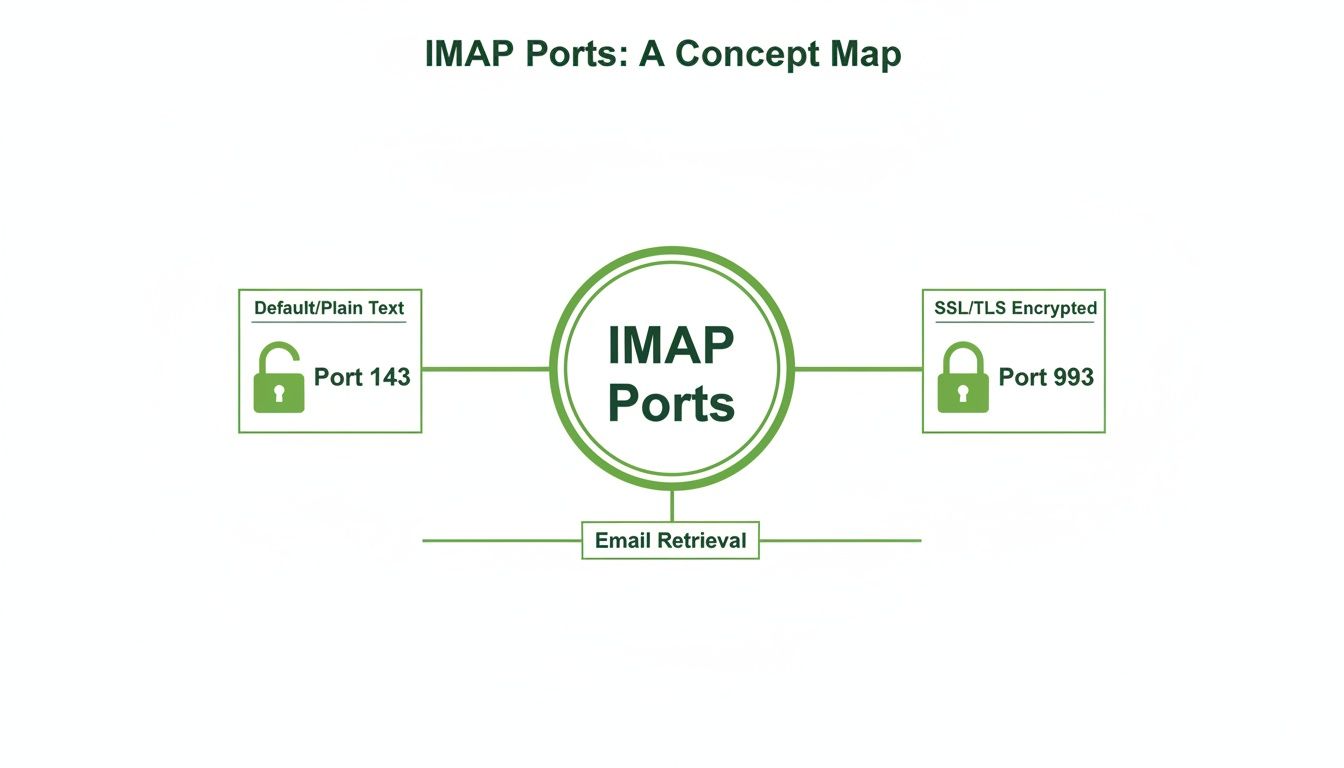
The diagram spells it out: port 143 is an open door for potential eavesdropping, while port 993 is securely locked down from the get-go. This simple choice is fundamental to keeping your communications private.
Keep in mind, IMAP is all about retrieving and synchronizing your email. It's often confused with another protocol, so understanding the differences between IMAP and POP3 is helpful. And if you want to dig deeper into the networking nuts and bolts, you can review the general concepts of TCP/IP, UDP, and common ports to get the full picture.
Why You Should Always Use Port 993 for Email
In the world of email, picking the right IMAP port isn't just a trivial setting. It’s a critical decision for your security and privacy. And let's be clear: port 993 is the only one you should be using today.
The reason is simple. Port 993 forces your connection to be encrypted from the instant it begins. This secure tunnel slams the door on eavesdroppers and man-in-the-middle attacks, which are surprisingly common on public Wi-Fi at coffee shops, airports, and hotels. Without it, your email privacy is at risk.
From Technical Detail to Real-World Security
This encrypted tunnel isn't just an abstract concept; it has direct, real-world consequences for your email security. It's the digital barrier that keeps your sensitive information out of the wrong hands.
This level of protection is vital for:
- Protecting Financial Data: It keeps bank statements, invoices, and payment details from being intercepted.
- Securing Business Communications: Confidential client data from a hosted email platform, internal memos, and company strategies stay private.
- Maintaining Personal Privacy: Your personal conversations and shared family photos remain confidential.
Think of using port 993 as a proactive security habit. Instead of waiting for a threat, you're creating a connection where most common email interception tactics simply fail from the start. It's genuine peace of mind with every email you check.
This isn’t just a recommendation; it’s why virtually every reputable hosted email platform and provider now defaults to port 993. The industry has recognized the dangers of unencrypted email and has overwhelmingly shifted to secure-by-default settings. You can read more about the history and adoption of secure IMAP on Wikipedia.
By making this the standard, email providers have raised the bar for everyone's security. It makes it incredibly simple for everyday users to stay protected from common cyber threats, keeping their digital lives both private and secure.
How to Configure Your IMAP Settings for Privacy
Knowing the right settings is half the battle; actually applying them is what guarantees your email security. The good news is that locking down your email client for privacy is straightforward. The core steps are nearly identical whether you're using Outlook, Apple Mail, Thunderbird, or a mobile app.
The main goal is to find your email account’s server settings and manually verify that you're using the right IMAP port number and encryption. While most modern email clients try to auto-configure this, a quick manual check ensures your connection is as secure as it should be.
Key Settings to Verify
Once you navigate to your account settings, you're looking for the "Incoming Mail Server" or "IMAP" section. This is where you’ll confirm the three critical details for a secure connection.
Here’s a simple checklist of what to look for:
- Server Name: Your email provider gives you this (e.g.,
imap.yourprovider.com). - Port Number: Make sure this is set to 993. If it’s on 143, change it immediately.
- Encryption Method: Find a dropdown menu and choose SSL/TLS. This enables the encryption.
When you manually set your IMAP port to 993 and encryption to SSL/TLS, you’re taking direct control of your email privacy. It’s a simple move that prevents your client from ever defaulting to a weaker connection, giving you peace of mind that your data is protected.
Step-by-Step Configuration in Common Clients
Every app looks a little different, but the process is always the same. You'll usually find the server settings under Preferences > Accounts or File > Account Settings.
For instance, in Apple Mail, you'd go to Mail > Preferences > Accounts, pick your account, and click on "Server Settings." From there, you can uncheck the box for "Automatically manage connection settings" to manually type in port 993 and select SSL/TLS. The process is very similar for other clients, making this a universal email security best practice.
Beyond your email client, it's always smart to think about the bigger picture of digital privacy. Reading a realistic guide to protecting privacy online can give you a much stronger foundation for all your digital activities. Taking these small, deliberate steps is how you truly safeguard your communications.
Solving Common IMAP Connection Problems
It’s happened to all of us. You’ve double-checked every setting, entered the right IMAP port number, and your email client still refuses to connect. It’s frustrating, but the fix is usually straightforward. Often, the problem isn't with your email settings but with something else getting in the way.
The most common culprit is a firewall or antivirus program. Think of them as overprotective security guards. They see your email app trying to make a connection on port 993, don't immediately recognize it, and block it just in case. This is especially true for third-party security software, which can have aggressive default rules that interfere with proper email security.
Investigating Blocked Ports and Firewalls
If you suspect a firewall is the issue, the first step is to check its settings. You'll likely need to create an exception or a new rule that specifically allows your email client to communicate over port 993. This tells the firewall that this specific connection is safe and should be allowed through.
A quick way to test this theory is to temporarily disable your firewall or antivirus and try connecting your email again. If it suddenly works, you've found your culprit. Just be sure to re-enable your security software immediately and then add that permanent exception.
A correctly configured IMAP port number is the foundation of a secure email setup, but it’s only one part of the equation. Making sure your own computer’s software isn’t interfering is a crucial troubleshooting step for keeping a reliable and private connection to your hosted email platform.
Handling Certificate Warnings
Another roadblock you might hit is a "certificate warning." This message appears when your email client can't confirm the identity of the email server. It’s like getting a call from someone claiming to be your bank, but the caller ID is "Unknown." This can happen if the server's security certificate is expired, misconfigured, or doesn't match the server name you entered.
If you get a certificate warning, don't just click through it. Stop and verify your details.
- Check the Server Name: Ensure the incoming mail server name is exactly what your provider gave you. A single typo can cause this error.
- Contact Your Provider: If the server name is correct, the problem might be on their end. Contacting the support team for your hosted email platform can resolve any system-wide issues.
By systematically troubleshooting these common issues, you can solve most IMAP connection problems and restore your secure, private access to your email.
Common Questions About IMAP Ports
Let's clear up a few common points of confusion around IMAP ports to reinforce why these settings are so important for your email privacy.
What's the Real Difference Between IMAP and POP3?
Both IMAP and POP3 are protocols for retrieving email, but they operate on fundamentally different philosophies that directly impact your workflow and email security.
-
IMAP (Secure Port 993): This protocol is designed for synchronization. Your email client acts as a window into your mailbox on the server. Any action you take—reading, deleting, or moving an email on one device—is instantly reflected everywhere else. This is essential for maintaining a consistent inbox across your phone, laptop, and tablet.
-
POP3 (Secure Port 995): This is a "download and delete" system. POP3 connects to the server, downloads all new emails to a single device, and typically removes them from the server. It's an outdated model from when people used one computer for email.
For anyone using multiple devices, IMAP is the only practical and secure choice. It gives you a consistent, unified inbox, a key feature of modern hosted email platforms.
Is It Ever Okay to Use Port 143?
In short, no. Using port 143 on any network you don't fully trust—like public Wi-Fi—is a major security risk. It transmits your password and email content in plain text, making it easy for others on the same network to intercept your private information.
Some argue that it can be upgraded to an encrypted connection using STARTTLS. However, this process creates a brief but critical moment of vulnerability.
When it comes to your email privacy, there should be no compromises. Always use the secure IMAP port 993. It establishes a strong, encrypted connection from the very start, leaving no chance for accidental data leaks.
Does IMAP Also Send My Emails?
No, IMAP's job is very specific: it only handles receiving and managing emails on your provider's server. It lets you read, file, and sync your inbox.
Sending emails is handled by a completely different protocol: SMTP (Simple Mail Transfer Protocol). For your email to be truly secure end-to-end, you must configure both your incoming IMAP settings (using port 993) and your outgoing SMTP settings, which should also use an encrypted port like 465 or 587.
Ready to take full control of your email security and privacy? Typewire offers a secure, private hosted email platform that puts you in charge of your data—completely free from tracking and ads. Start your 7-day free trial today.
The post Your Guide to Finding the Right IMAP Port Number for Secure Email appeared first on Typewire.
Your Guide to Finding the Right IMAP Port Number for Secure Email
Posted: 2025-12-20
How to Whitelist an Email Address (So You Stop Missing Messages)
Posted: 2026-10-06
Email Bounce Explained: Soft vs Hard Bounces & How to Fix Them
Posted: 2026-10-02
Which Secure Email Provider Fits Your Workflow? 10 Options by Use Case
Posted: 2026-09-29
Personal Data Privacy: Why Your Email Is the Master Key to Your Digital Life
Posted: 2026-09-24
Secure Email Gateway Guide: Do You Need One?
Posted: 2026-09-23
Average Email Deliverability Rate: 2026 Benchmarks
Posted: 2026-09-18
Phishing vs Spam: What’s the Difference?
Posted: 2026-09-15
PIPEDA vs GDPR Key Differences for Businesses
Posted: 2026-09-11