How to Securely Set Up Emails on iPhone
Getting your email up and running on your iPhone is pretty straightforward on the surface. You just head to Settings, tap Mail, go to Accounts, and hit Add Account. For big players like Gmail or Outlook, it's a walk in the park. But a truly secure setup goes deeper than just typing in your password. It's about making smart choices from the get-go to protect your digital privacy and enhance your email security.
A Look at Secure and Private iPhone Email Setup
Setting up email on your iPhone isn't just a technical chore; it's a foundational step for your digital security and privacy. The method you choose has a real impact on how your data is managed, who can see it, and how exposed you are to things like phishing scams and data mining.
Think about it: free email services are convenient, but that convenience often comes at the cost of your privacy. These platforms frequently scan your emails to create a detailed profile on you, all for targeted advertising. Suddenly, your private conversations, receipts, and personal documents become data points for marketers, eroding your email security.
Hosted email platforms work on a completely different premise. You pay a small fee, which makes you the customer, not the product. This simple shift aligns the provider's goals with yours—they're motivated to protect your privacy and security above all else. This business model is inherently more secure because their revenue depends on safeguarding your data, not monetizing it.
Understanding Your Setup Options
When you add a new email account on your iPhone, you'll see a few different ways to do it. Each path has its own implications for email security and how much control you have over your data.
- Automatic Setup: This is the default for services like Gmail and Outlook. It’s quick and easy, but it hides all the technical details, which can also obscure how your data is actually being synced and what privacy you're giving up.
- Manual (IMAP/SMTP) Setup: This method gives you total control over the server settings. It’s a must for hosted email platforms and allows you to confirm that crucial encryption protocols like SSL/TLS are properly enabled for maximum security.
- Exchange ActiveSync: Mostly seen in corporate environments, this protocol securely syncs your email, calendars, and contacts. It also often lets your company enforce security policies directly on your device, enhancing overall email security.
The goal here is to shift your mindset from "it works" to "it works securely." Your choice of an email provider and the setup method you use are your first line of defense in protecting your digital life.
Ultimately, knowing what’s happening behind the curtain is what matters. A sophisticated phishing attack can sometimes bypass even two-factor authentication if your underlying email security isn't solid. You can dive deeper into what a secure email is and why it is crucial for your privacy in our detailed guide.
By choosing a hosted email service and taking the time to configure it manually, you gain the power to verify encryption, control your data, and shrink your digital footprint. This guide will walk you through every step, helping you make the most secure choices for your iPhone.
The Quickest Way to Add Your Email Account
For most people, adding an email account to an iPhone is incredibly straightforward. Apple really nailed the automatic setup. You just head over to Settings > Mail > Accounts > Add Account, pick a big name like Google, Outlook, or Yahoo, and punch in your email and password. That's it. Your inbox is up and running in moments.
So, how does it all happen so fast? It’s not magic, but a clever feature called autodiscover. Your iPhone basically asks a series of questions behind the scenes, checking common server names and standard secure ports—like IMAP port 993 with SSL—to figure out the correct settings for your provider on its own. This saves you the headache of hunting down and typing in all that technical server info.
Convenience Versus Privacy and Security
That speed is a massive plus, but it's worth taking a moment to think about what you're trading for that ease. Let's be honest, most free email services make their money from your data. They often scan your emails for keywords to build a profile on you for targeted advertising. The automatic setup is so smooth that it’s easy to forget about this privacy trade-off happening in the background.
Here's the bottom line: convenience often comes at the expense of privacy. While automatic setup encrypts the connection to protect your data in transit, it doesn't protect your data from the provider's business model, which can be a significant email security risk.
This is exactly where hosted email platforms stand apart. When you use a service like Typewire, you're the customer, not the product. Their business is built on keeping your information private, so your interests and theirs are perfectly aligned. You can sometimes use the automatic setup for these services too, but knowing how to do it manually is the key to locking down your email security.
Getting your mobile email set up correctly has never been more important. We’re talking about a world with 4.48 billion email users, a massive number of whom check their inboxes primarily on their phones. For businesses, this is crucial. A staggering 87% of marketers see email as critical to their success, and that success depends on their messages hitting a properly configured mobile inbox. You can dig deeper into email marketing's reliance on mobile at Shopify.com.
To give you a clearer picture of what's happening during that automatic setup, here’s a quick breakdown of how major providers handle it.
Automatic Setup Provider Comparison
| Email Provider | Setup Method | Default Security | Key Privacy Consideration |
|---|---|---|---|
| Google (Gmail) | OAuth 2.0 | TLS/SSL | Emails are scanned for ad targeting and feature personalization. |
| Microsoft (Outlook) | OAuth 2.0 | TLS/SSL | Data is used for personalized ads and product improvement. |
| Yahoo Mail | App-specific password/OAuth | TLS/SSL | Known for extensive data scanning for advertising purposes. |
| Apple (iCloud) | Integrated Apple ID | End-to-End (iMessage) & TLS/SSL (Mail) | Generally strong privacy policy, but not immune to data requests. |
Ultimately, the automatic process is a fantastic tool, especially since it defaults to strong security like SSL/TLS encryption. But if you're someone who puts a high value on data privacy and doesn't want your communications turned into ad revenue, it's a great starting point for thinking about more private, robust solutions like hosted email platforms.
Manually Configuring a Hosted Email Account
Sometimes, the automatic setup just doesn't cut it. Maybe you're using a privacy-first hosted email platform or a custom domain where your iPhone's auto-discovery feature comes up empty. In these cases, a manual configuration is your go-to solution for maximizing email security.
It might sound a bit technical, but don't worry. Manually setting things up simply means you're telling your iPhone the exact "address" of your email provider's servers. This gives you complete control and is often the best way to guarantee your connection is secure.
You'll start the process in the same place you would for an automatic setup. This quick visual shows you where to begin.
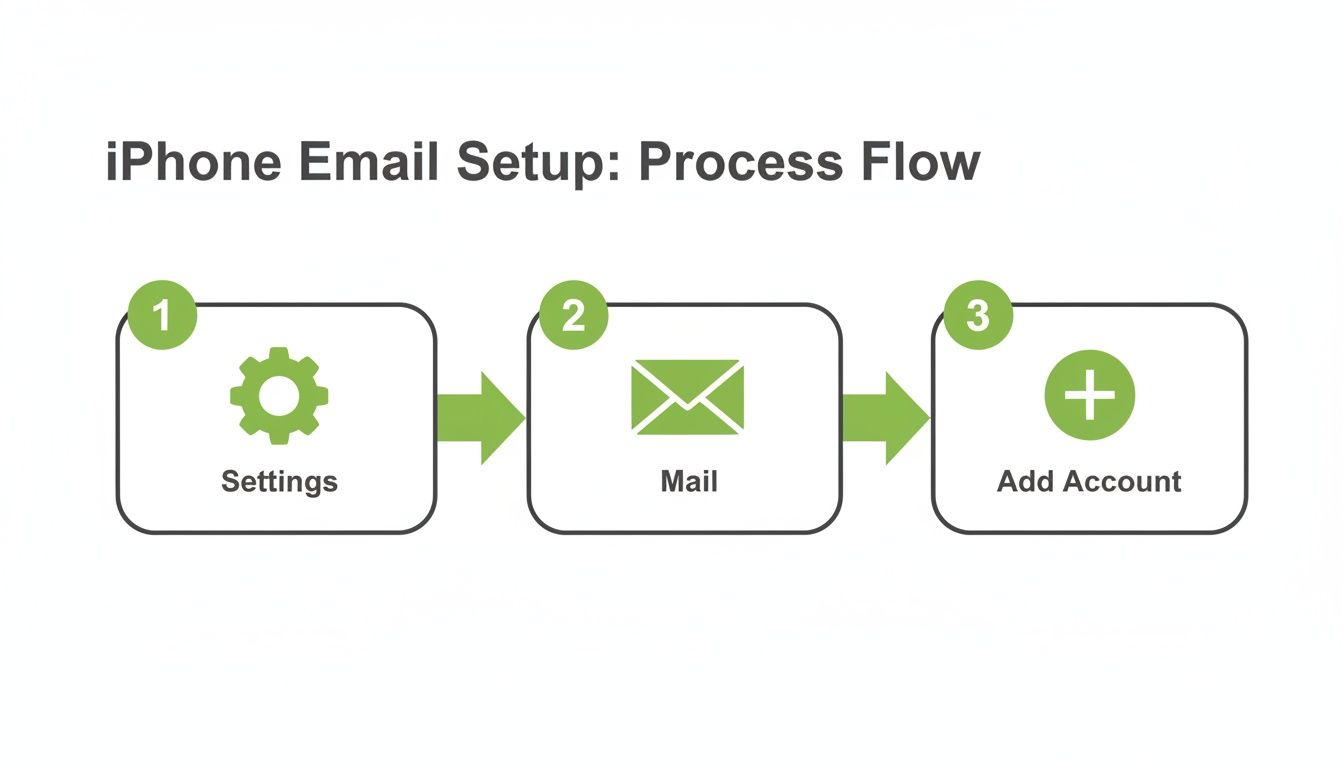
Once you're on that screen, tapping ‘Other’ is your entry point to customizing your email settings for optimal privacy and security, especially when using a hosted email platform.
Understanding IMAP and SMTP
When you go the manual route, you'll be asked for IMAP and SMTP settings. Think of these as two distinct mail carriers, each with a very specific job related to your email security.
-
IMAP (Incoming Mail Server): This is the system that pulls your emails down from the server to your iPhone. It's also what keeps everything in sync. When you read or delete an email on your phone, IMAP makes sure that change is reflected everywhere else you check your email.
-
SMTP (Outgoing Mail Server): This is the system that sends your emails from your iPhone out to their destination. It needs its own server address and login details to work correctly, which prevents spammers from hijacking your account to send junk mail.
Manually entering these settings isn't just a technical hurdle; it’s a security checkpoint. You get to personally verify that your connection is encrypted with SSL/TLS. This is what scrambles your data as it travels, making it unreadable to anyone who might be snooping on the network.
A Practical Example with a Hosted Provider
Let's walk through a real-world scenario. Imagine you're setting up an account from a secure hosted email platform like Typewire. You've gone to Settings > Mail > Accounts > Add Account > Other, and now it's time to plug in the details.
Here’s what you would typically enter:
Incoming Mail Server (IMAP)
- Host Name:
imap.typewire.com - User Name: Your full email address
- Password: Your email password
- Port: 993
- Use SSL: Toggled ON
Outgoing Mail Server (SMTP)
- Host Name:
smtp.typewire.com - User Name: Your full email address
- Password: Your email password
- Port: 465 or 587
- Use SSL: Toggled ON
Did you notice that both the incoming and outgoing servers ask for your username and password? That's called SMTP authentication. It’s a crucial email security measure that proves you’re actually you before the server agrees to send an email on your behalf. To dig deeper, our guide explains what SMTP authentication is and its role in email security and privacy.
Taking a few extra minutes to configure these settings yourself gives you total peace of mind, knowing your email is set up exactly how it should be—securely and privately.
Getting Your Corporate or Exchange Email Online
For most of us, setting up our work email is the first thing we do on a new iPhone. It’s not just about convenience; it’s our lifeline to colleagues, projects, and deadlines. Having your corporate or Microsoft Exchange email right there on your phone keeps you connected, but it also introduces important email security considerations.
The magic behind this is a protocol called Exchange ActiveSync. Unlike a regular email account, this isn’t just about messages. It’s a powerful tool that syncs everything—your calendar, contacts, reminders, and notes—securely between your iPhone and your company’s servers. It’s what keeps your entire work life in perfect sync and enforces corporate security policies.
Walking Through the Setup
Most of the time, this is incredibly easy. Head over to Settings > Mail > Accounts > Add Account, and tap Microsoft Exchange. Just pop in your work email and password, and your iPhone's autodiscover feature should automatically find and configure all the tricky server settings for you. It’s a real set-it-and-forget-it process.
But sometimes, things aren't so simple. If your company uses custom server settings for extra email security, autodiscover might not be able to find its way. If that happens, you'll need to enter the server details manually. Don't sweat it—this info is usually just a quick email or call away.
Your IT department will have the exact details you need, which typically include:
- Server Hostname: This is the address of your company's mail server (e.g.,
mail.yourcompany.com). - Domain: The internal network domain name for your company.
- Username: This is usually your full email address, but sometimes it's a specific network login.
Plugging in these details creates a direct, encrypted link to your corporate network, making sure your phone plays by all the security rules your IT team has established.
Exchange ActiveSync is often the foundation of mobile email security for a company. It can let your organization enforce policies like requiring a passcode and even remotely wipe company data if your phone is lost or stolen, keeping sensitive information safe.
This is a big deal in a corporate setting. If your business relies on Microsoft 365, backing up that data is just as critical as setting it up. It's always a good idea to look into dedicated cloud backup solutions for Office 365 to make sure that critical information is never lost.
Why Security and Compliance Matter
When you set up your Exchange account, you're also agreeing to your company's email security standards. By following the instructions from your IT team, you ensure your device is compliant, which protects both your data and the company's sensitive information.
This tight integration is precisely why so many businesses trust Exchange. It delivers the mobile access employees need without sacrificing the strict email security protocols the company requires. Getting your account connected means you can be productive anywhere, with complete peace of mind.
Strengthening Your iPhone Email Security and Privacy
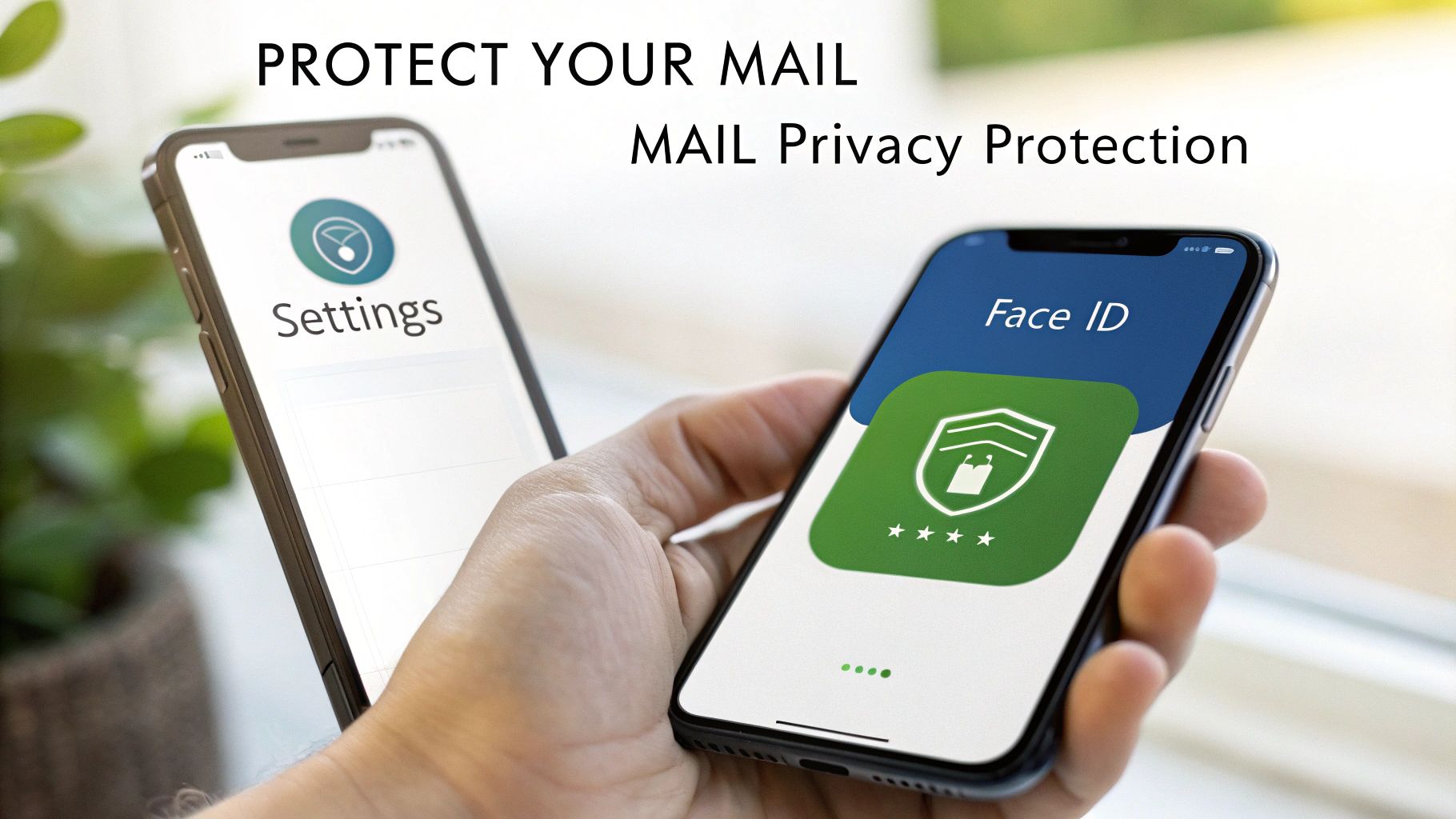
Getting your email working on your iPhone is a great start, but it’s not the whole story. To truly set up emails on iPhone the right way, you need to think about email security and privacy from the get-go. A few small tweaks can turn your Mail app into a personal fortress for your communications.
Apple has really leaned into this with features like Mail Privacy Protection (MPP). This is a game-changer for email privacy. When you switch it on, it stops senders from seeing when—or even if—you’ve opened their emails. It works by routing remote content through various proxy servers, which hides your IP address and general location.
This single feature completely upended the world of email marketing. Since MPP rolled out with iOS 15, open rates from Apple Mail users became unreliable, as almost every email appeared to be opened instantly. In fact, with updates in iOS 18, some retailers saw click-through rates on iOS devices fall by as much as 25%, forcing them to find new ways to measure engagement.
Beyond Apple’s Built-in Protections
While MPP is a fantastic shield, it’s only one piece of the puzzle. The email security of the device itself is just as critical. A simple four-digit PIN isn't enough anymore; you should be using a strong, alphanumeric passcode.
You can then add biometrics on top of that. By requiring Face ID or Touch ID to open the Mail app, you ensure your inbox stays locked down even if someone gets past your phone's lock screen. It’s a simple, effective barrier against unauthorized access.
Think of your iPhone's security like a medieval castle. The passcode is the outer wall, Face ID is the guarded gate, and Mail Privacy Protection patrols the inside. Each layer you add makes it that much harder for anyone to breach your defenses.
For another powerful layer of email security, I always recommend setting up Multi-Factor Authentication (MFA) on the email accounts themselves. This is crucial for protecting your accounts from being compromised. If you want to learn more, our guide to multi-factor authentication for email security covers everything you need to know.
Actively Spotting Threats on Mobile
Even with all the best tech protections in place, we can sometimes be our own worst enemy. Phishing scams are dangerously effective on mobile, where the small screen and our tendency to rush can make us miss the obvious warning signs that compromise our email security.
Keep a sharp eye out for these classic phishing tactics:
- Suspicious Senders: Don't just look at the sender's name; tap it to reveal the full email address. Scammers are masters at creating addresses that look almost right.
- Urgent Demands: Phishing emails love to create panic. They’ll pressure you to "verify your account immediately" or warn that it will be "suspended" if you don't act now.
- Unusual Links: This is a big one. Before you tap any link, press and hold it. A preview of the actual URL will pop up. If it looks sketchy or doesn't match where you think it should go, don't tap it.
By combining Apple’s built-in tools with solid device security and a bit of healthy skepticism, you can make sure your iPhone email setup is not just convenient, but genuinely secure.
Got Questions About iPhone Email? Let's Clear Things Up
Setting up email on your iPhone can sometimes throw you a curveball, especially when you’re trying to lock down your privacy and email security settings. It's totally normal to have a few lingering questions. Let's walk through some of the most common ones I hear.
Can I Use a Hosted Email Platform with the iPhone Mail App?
Yes, absolutely! Pairing a privacy-first hosted email platform with Apple's native Mail app is actually a fantastic setup. You get the smooth, familiar interface of the iPhone's Mail app, but all your data is managed by a provider that's actually in the business of protecting your privacy, not selling your information.
To make this happen, you'll almost always need to go the manual setup route we walked through earlier. Just grab the IMAP and SMTP server details from your hosted email provider, plug them in, and you'll have a direct, secure, and fully encrypted connection.
Is Apple’s Mail Privacy Protection Enough Security?
Apple's Mail Privacy Protection (MPP) is a great feature, but it's important to understand what it does—and what it doesn't do. Its main job is to stop senders, particularly marketers, from using invisible pixels to track when and where you open their emails. That's a huge step forward for personal email privacy.
But it’s not a magic bullet for all email security.
Relying only on a single platform feature is a classic mistake. Real email security is about layers: a strong passcode on your phone, Face ID, a private hosted email platform, and most importantly, your own awareness of phishing scams.
Think of it this way: MPP can cloak you from trackers, but it can't stop a clever phishing attack designed to trick you. Even the most security-savvy people can get caught off guard by a well-crafted fake email when they're distracted or in a hurry. These scams are engineered to create a sense of panic, pushing you to give up your login details. This is exactly why having biometrics and a good password manager is so critical—they're your safety net when you're only human.
Why Does My iPhone Keep Asking for My Email Password?
Ah, the phantom password prompt. It's an incredibly common and annoying issue, and it almost always comes down to an authentication hiccup between your phone and the mail server, which can impact your email security if not resolved.
Here are the usual suspects:
- Password Mismatch: This is the big one. If you recently changed your email password on your computer or another device, your iPhone is now trying to log in with the old, outdated one. It's an easy fix, but it's the most frequent cause.
- Server Connection Glitches: Sometimes it’s not you, it's them. A temporary network issue or a brief moment of server maintenance on your provider's end can cause the connection to fail, triggering the password request.
- A Security Lockout: If your email provider spots some unusual activity on your account (like logging in from a new location), they might put a temporary block on it for your protection. The password prompt is their way of making sure it's really you.
Your first move should be to head into Settings > Mail > Accounts. Tap on the account that's giving you trouble and carefully re-enter your password. If the problem persists, the most reliable fix is often to just delete the account from your iPhone and add it back again. This forces a fresh connection and pulls in all the correct server settings, usually clearing up any stubborn authentication snags.
Ready to take back control of your inbox? With Typewire, you get a secure, private hosted email platform that puts you first. No ads, no tracking, and no data mining—just reliable email on your own terms. Start your free 7-day trial and experience a truly private inbox today.
How to Securely Set Up Emails on iPhone
Posted: 2025-12-19
PIPEDA vs GDPR Key Differences for Businesses
Posted: 2026-09-11
CASL Express vs Implied Consent: What’s the Difference?
Posted: 2026-09-08
Moving Away from Big Tech Email and How to Make the Transition Smooth. Here’s How:
Posted: 2026-09-04
Why Choose Typewire as a Canadian Email Option
Posted: 2026-09-01
What Happens if You Open a Phishing Email?
Posted: 2026-08-28
How to Evaluate Canadian Email Hosting Providers (2026 Guide)
Posted: 2026-08-25
What Is DKIM Record and How Email Signing Works
Posted: 2026-08-21
“DMARC Policy Not Enabled”: What It Means and How to Fix It
Posted: 2026-08-18